
System Requirements
- AA Signature Suite for Linux runs on x86-64 only.
- While it can run on systems with 8GB of RAM, we recommend at least 16GB RAM.
- USB stick size needs to be at least 16GB.
First Time Installation
Download AA Signature Suite for Linux image zip file from our Download page.
Download the portable version of Rufus into your Windows computer and run it.
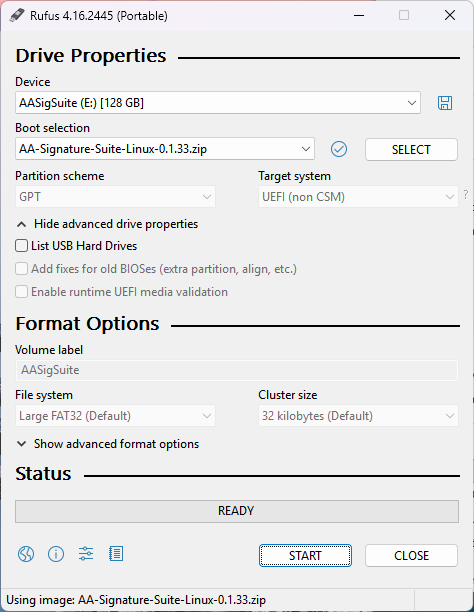
Plug in USB stick with at least 16GB size. Select the device. If you are flashing internal SSD drive connected via SATA or PCIe to USB3 adapter, check “List USB Hard Drives”.
On the top-right side, “Select” the image to flash. This is the zipped file you have just downloaded. The file is in your Downloads folder.
Press “Start” followed by confirmation to wipe out the attached storage drive. This takes a few minutes depending on its write speed.
Booting Audio PC the First Time
We use “Audio PC” to refer to the computer you use for music playback. This can be a regular laptop, desktop, or an audiophile-grade DIY music server.
Plug in the USB stick while the Audio PC is off. Turn on and start the Audio PC. Press F2 or Delete on the keyboard to interrupt POST so that you can enter the BIOS screen. Here, you need to enable UEFI boot and set the boot priority if you have multiple bootable drives. Ensure this USB image is set as first priority.
If you use a regular Windows laptop which is your work laptop but temporarily repurposed as Audio PC, you need to press F2 or Delete each time you want it to boot from USB stick.
Headless Setup
AA Signature Suite for Linux is a headless system. No keyboard, mouse, and monitor is required. All setups done through web interface.
During O/S boot, you should see the DAC showing its highest DSD rate.
The screenshots shown in this manual come from either JPLAY for iOS UPnP Controller app or Windows browser.
Registration is Required
After boot, the Audio PC is named as aa-linux in your home network. To access its Systems Settings menu, type